
Working with Assets
The Assets is a central library for managing all your digital files used across campaigns — including images, videos, and other media. From this page, users can upload, organize, and manage files efficiently for use in templates, and campaigns.
Main Interface
Layout Overview
Left Panel (Folders): Displays your folder structure. You can create, rename, and navigate folders to organize your assets logically.
Main Panel (Assets List): Displays the files and subfolders within the selected folder.
Top Bar:
Filter options (by type, size, created/updated date)
Search bar
Buttons:
New folder – create a new folder
Upload assets – upload new files
Preview Panel: Displays a large preview of an asset.
Organising assets with folders
EpisXperience supports folder-based organization, giving users the flexibility to structure templates according to their workflow. Common folder structures include:
By Project/Campaign: Newsletter June, Newsletter July,…
By Type: Images, Videos, Attachments
Very often assets are organised by both Project/Campaign and type. For example:
📁Newsletter June
📁 Images
📁 Videos
📁 Attachments
This helps teams quickly locate and manage assets relevant to campaigns or purposes.
List & Grid view
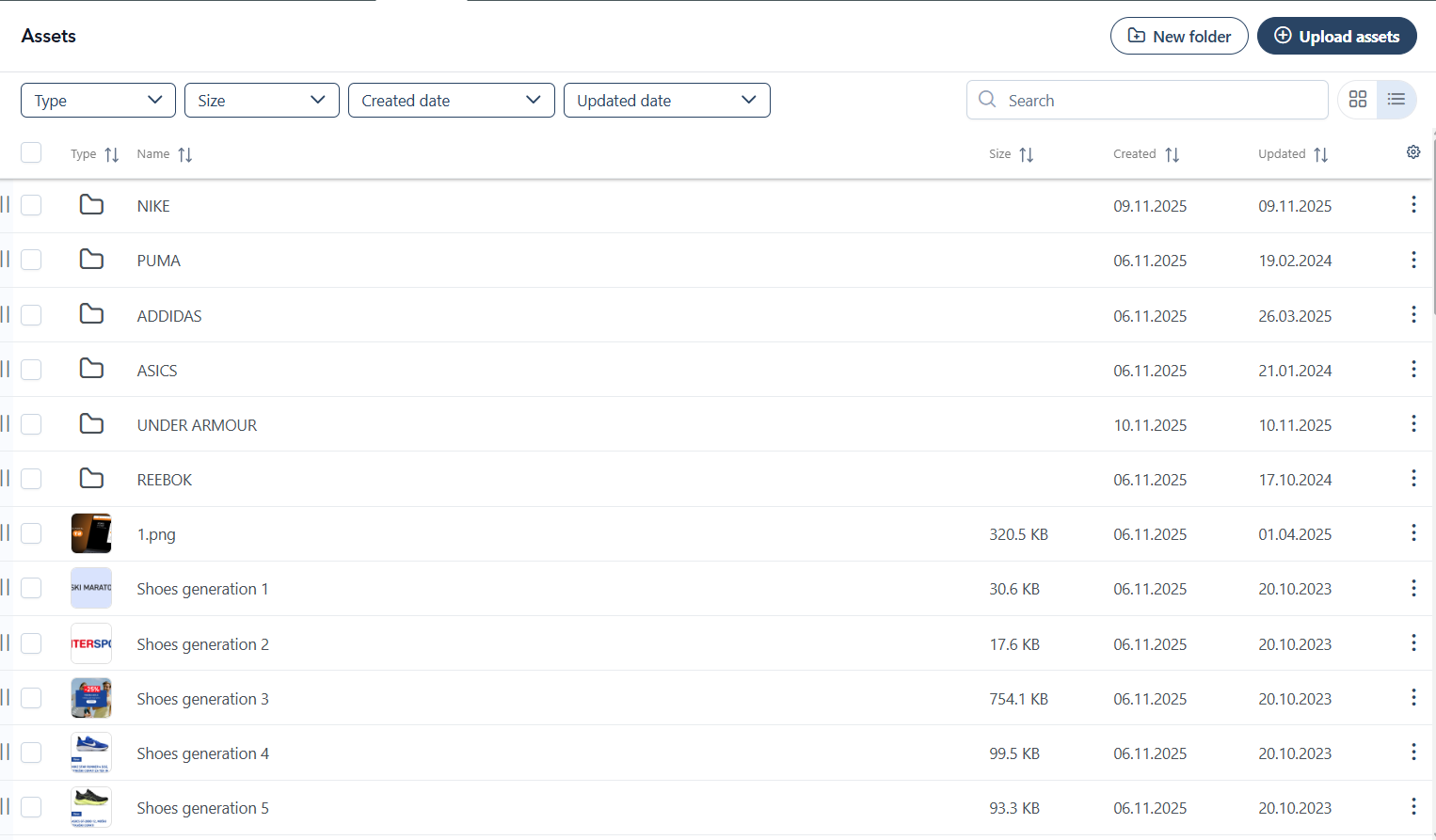
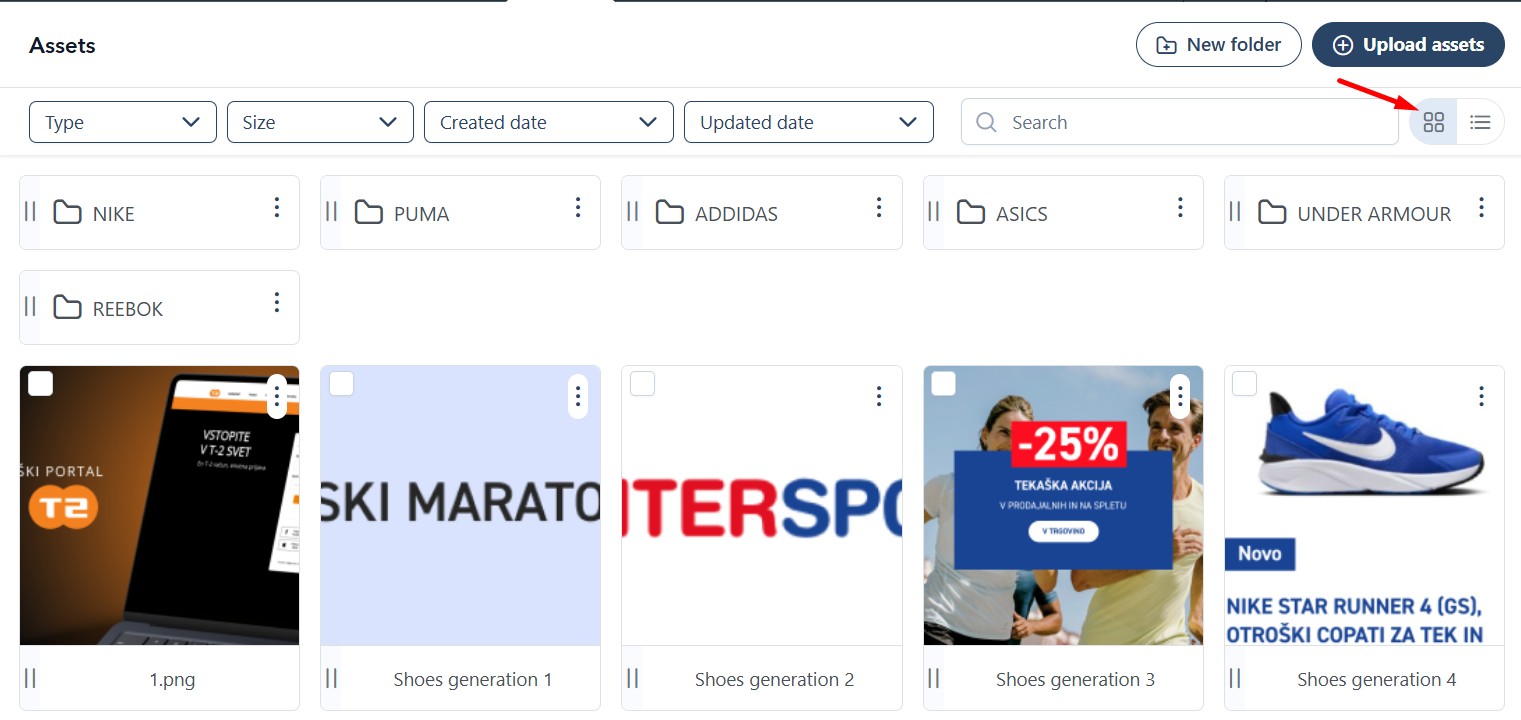
Assets can be viewed in two ways: List View and Grid View.
List View
Displays templates in a vertical list with key details shown in columns. Ideal for:
Scanning template names, statuses, and dates
Sorting and filtering by metadata
Performing bulk actions
Viewing more items in a compact layout
Grid View
Shows templates as visual cards or tiles. Best suited for:
Browsing templates by appearance
Identifying designs visually
Focusing on layout and design
Switching Views
To switch between List and Grid views:
Click the Grid/List icon
in the top-right corner of the Templates section.
Preview assets
Since the assets are mostly visual media, EpisXpereience provides a preview that enables you to browse and find assets visually.
Steps:
Click on an Asset in the asset list or grid to open the Preview panel.
The preview displays a larger view or thumbnail of the file, depending on its type.
Tips:
Use the preview to verify that you’ve selected the correct file before inserting it into a campaign.
Search and Filter templates
EpisXperience includes a powerful search and filter bar to help you quickly find the assets you need.

You can narrow down your search using the following options:
You can filter assets by:
Type: PDF, JPG, PNG, etc.
Size: All, <100 KB, 100 KB to 1 MB, 1 MB to 10 MB and >10 MB
Created At: Filter by creation date
Updated At: Filter by last modification date
Use the search bar to locate assets by name or keyword.
Creating a new folder
Folders help organise templates by project, region, or time period. To create a new folder:
Click the
button in the upper-right corner.
The folder will be added to the currently active folder.
Delete folder
To delete a folder:
Locate the folder you want to remove.
Click the
and select delete
Confirm the deletion when prompted.
Move assets or folders
To move an asset or a folder:
Locate an asset or a folder you want to move.
Click and Hold the Move handle
.
Drag and Drop an asset or a folder to another folder in the Folder panel on the left or in main section.
Confirm the action.