
Working with Templates
The Templates section in EpisXperience allows users to create, manage, and organize various types of templates used across campaigns. Templates help streamline the creation of messages such as emails, SMS, Viber, and more.
Overview
Within the Templates section, users can:
Create new templates
Edit existing ones
Delete templates
Organise templates into folders for better management
The interface is designed to be intuitive, with dedicated areas for browsing, organising, and filtering templates.
Navigating to the Templates page
You can navigate to the Templates page using the main navigation at the top of UI.

List & Grid view
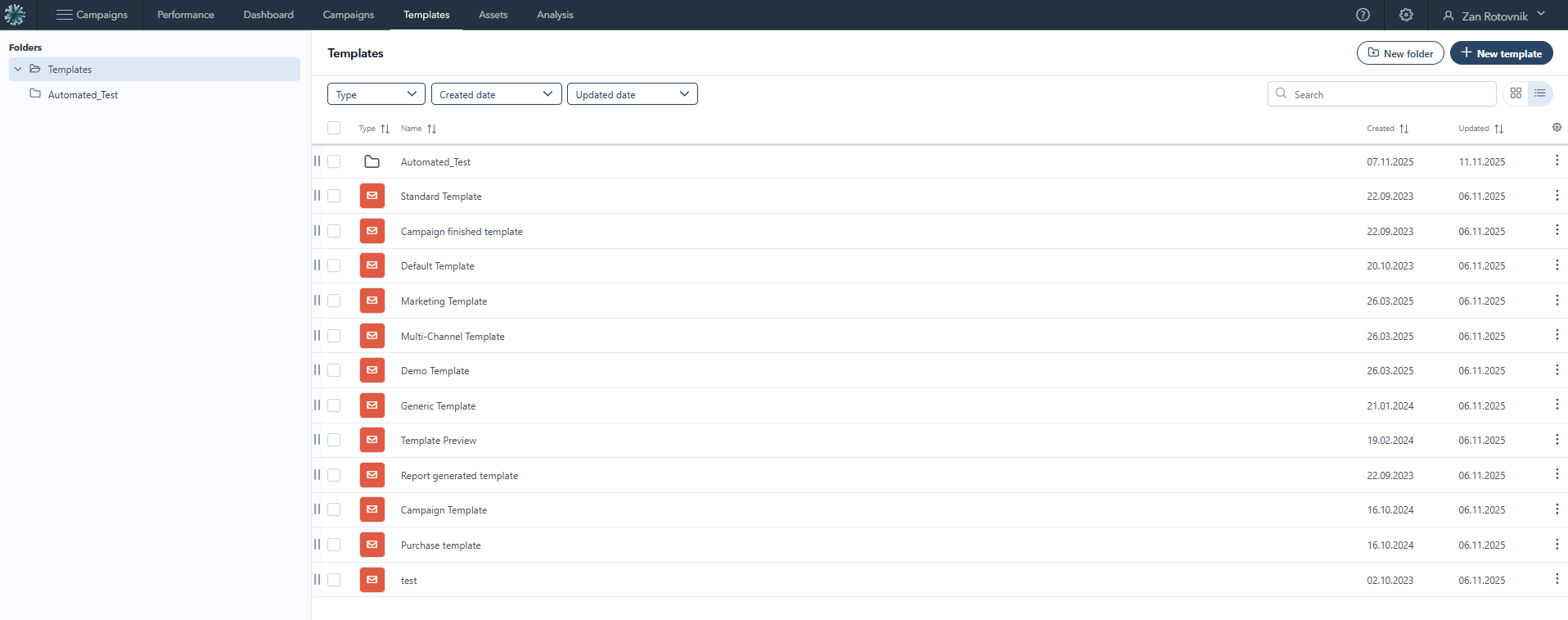
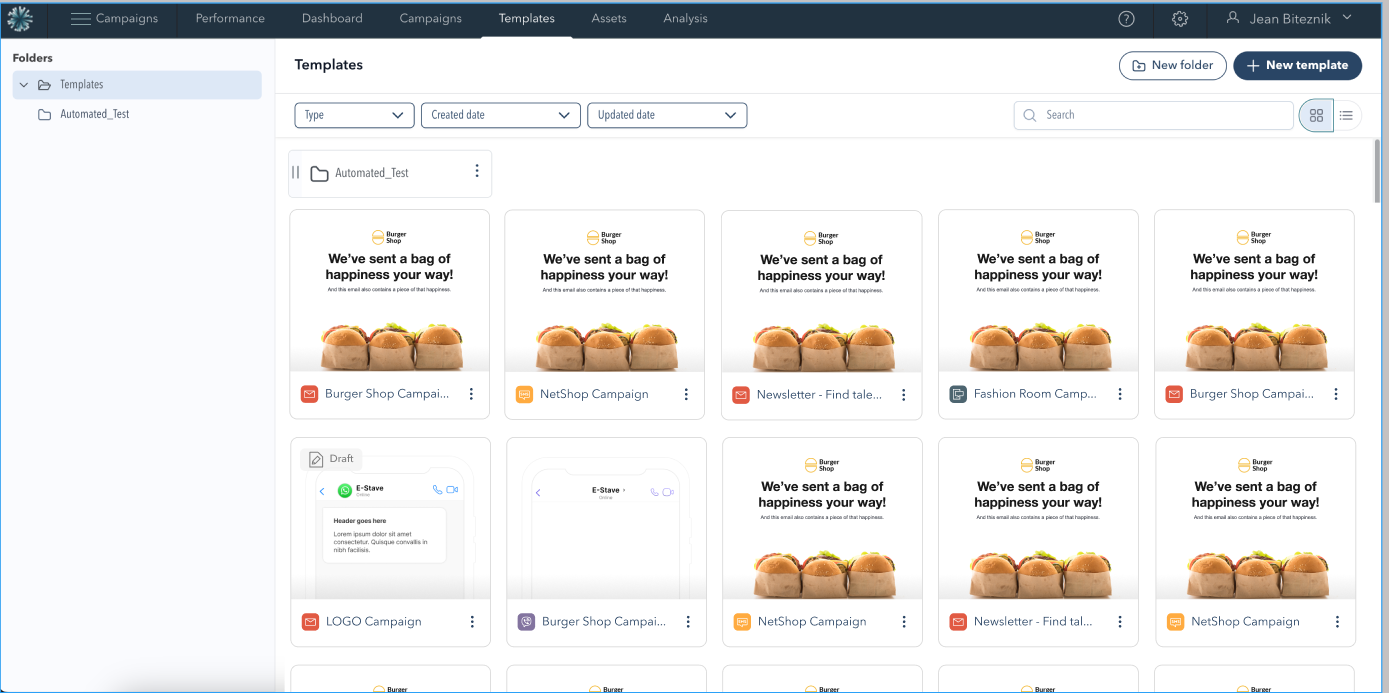
Templates can be viewed in two ways: List View and Grid View.
List View
Displays templates in a vertical list with key details shown in columns. Ideal for:
Scanning template names, statuses, and dates
Sorting and filtering by metadata
Performing bulk actions
Viewing more items in a compact layout
Grid View
Shows templates as visual tiles. Best suited for:
Browsing templates by appearance
Identifying designs visually
Focusing on layout and design
Switching Views
To switch between List and Grid views:
Click the Grid/List icon
 in the top-right corner of the Templates page.
Search and Filter templates
EpisXperience includes a powerful search and filter bar to help users quickly find the templates they need.

You can narrow down your search using the following options:
Type: Email, SMS, Viber, Condition
Created At: Filter by creation date
Updated At: Filter by last modification date
Use the search bar to locate templates by name or keyword.
Creating a new folder
EpisXperience supports folder-based organisation, giving users the flexibility to structure templates according to their workflow. Common folder structures include:
Projects: Newsletters, Authentication
Regions: EU, US, LATAM
Time: 2025 → January, February, etc.
This helps teams quickly locate and manage templates relevant to specific regions, campaigns, or purposes.
To create a new folder:
Click the New Folder
 button in the upper-right corner.
The folder will be added to the currently active folder.
Delete folder
To delete a folder:
Locate the folder you want to remove.
Click the three dots button
 and select delete
Confirm the deletion when prompted.
Move templates or folders
To move a template or a folder:
Locate the folder you want to move.
Click and Hold the Move handle
 .
.Drag and Drop the template or a folder to another folder in the Folder section on the left or in the main section.
Confirm the action.