
Campaign settings
The Campaign Settings section defines how messages are delivered, tracked, and limited across all communication channels. Use these settings to configure message delivery behavior, apply communication limits, and select message providers.
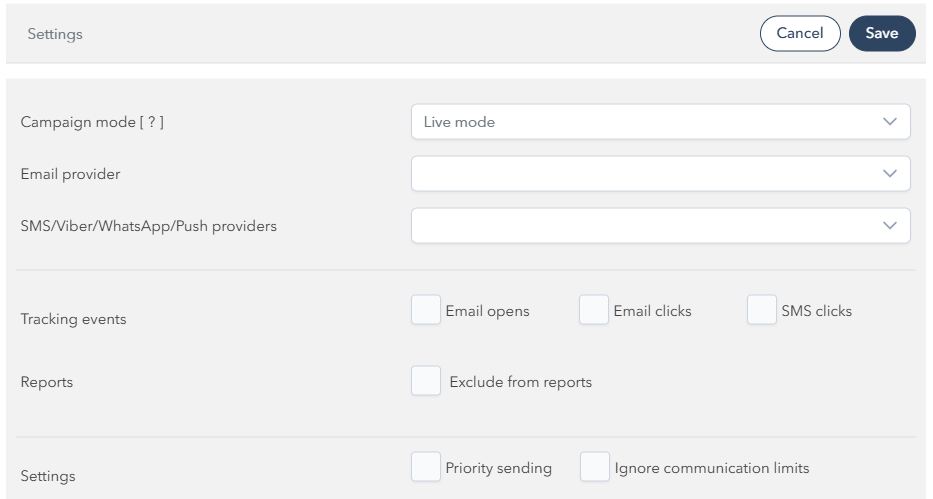
Selecting Campaign mode
The Campaign mode determines how messages are sent during campaign execution.
Live mode – Messages are sent directly to customers.
Test mode – Messages are sent only to test users defined in
Global Settings → General → Test user list.
When using Test mode, messages are randomly distributed among test users.
For example, if your target group includes 10 customers and you have two test users, those 10 messages will be split roughly evenly between the two (e.g., 5 each, though distribution may vary).

Tip: Use Test mode for campaign validation. Keep your target group small to avoid overwhelming test users with a large number of messages.
Switching from Test to Live mode
After verifying your campaign in Test mode, you can switch to Live mode.
Upon switching, the Campaign will restart automatically in live mode, and all messages in the target group will be resent to customers (including those already sent to test users).
Selecting an email provider
The Email provider defines which service will be used to send email messages. You can register and manage available providers under Global Settings.
Selecting a mobile provider
The Mobile provider defines which service is used to send SMS, Viber or Push notifications.
Providers can be registered and configured in Global Settings.
Setting up Tracking
You can choose which tracking events are monitored for this campaign:
Email opens – Track when recipients open your email.
Email clicks – Track when recipients click links in your email.
SMS clicks – Track link clicks in SMS messages.
Enabling these options provides more detailed analytics for reporting and performance tracking.
Reporting options
When the "Exclude from reports” option is checked, the messages sent from the campaign will be excluded from reports to prevent skewing the report data and metrics.
It is recommended to check this option when sending a draft campaign to internal users for approval or testing purposes.
Priority sending
EpisXperience includes two sending queues: a standard and a priority queue.
When Priority sending is enabled, messages from this campaign are placed in the priority queue.
This ensures instant delivery but may still experience minor delays if the priority queue is full due to many active Campaigns with Priority sending checked.
Tip: Use this option only for time-sensitive or transactional campaigns such as purchase confirmations, authentication codes, or booking alerts.
Working with communication limit
Communication limits are designed to protect customers from receiving excessive messages due to technical or user errors.
Default Behavior
By default, each recipient can receive a maximum of 20 messages per hour per communication channel (Email, SMS, Viber, WhatsApp, etc.).
Once this threshold is exceeded, subsequent messages will not be sent.
Blocked messages will be logged as not-sent with status of "Communication limit exceeded".
Setting the Global Communication Limit
Administrators of EpisXperience can view and adjust the global limit.
Administrator can define:
The maximum number of messages a recipient can receive per hour.
This setting applies globally across all communication channels.
Important: This mechanism is not a throttling control for normal delivery speed — it’s a protection layer against spam or system malfunction.
Communication Limit Type
Communication limit can work in two modes:
Based on User ID
Communication restrictions are applied based on the User ID.
The Contact value (e.g., email or phone) is ignored.
Based on Contact
Restrictions are applied based on the Contact (e.g., customer’s email address or a mobile number).
The User ID is ignored.
Switching between User ID Limit and Contacted At Limit immediately applies the corresponding restriction type system-wide.
By default communication limit is applied based on the User ID.
Should you wish to modify the following parameters:
Communication Limit Type
Maximum number of messages
Please contact Episcenter support at support@episcenter.si.
Ignore Communication Limits
If Ignore communication limits is enabled, messages from this campaign will be sent even if the global communication threshold has been exceeded.
Tip: Enable Ignore communication limits only for automated, business-critical campaigns (e.g., purchase confirmations or authentication messages).
For most campaigns, keep this option disabled to prevent over-messaging.