
Enabling two-factor authentication
In order to utilize two-factor authentication, you must first enable it within the Settings.
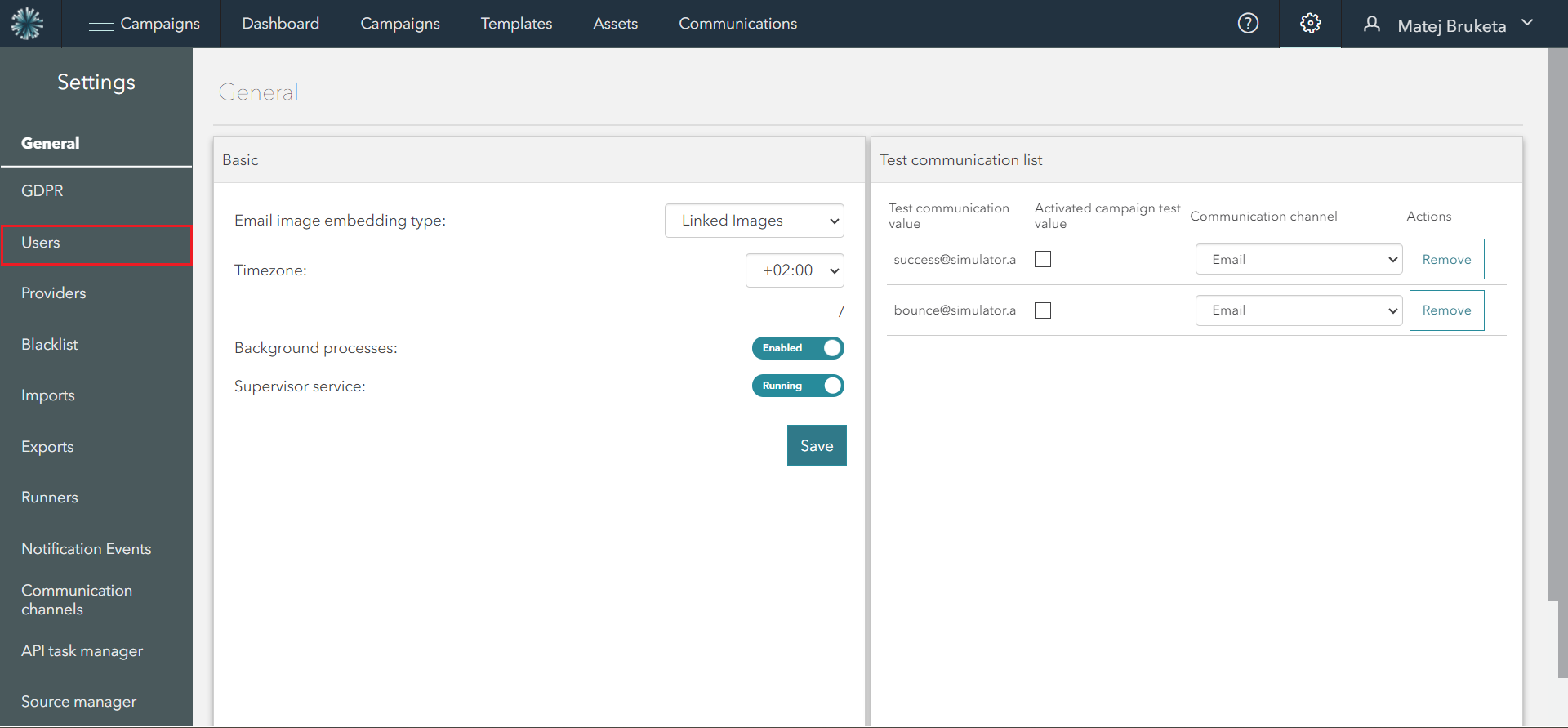
You can find the option to enable it in the Users tab of the Settings window.
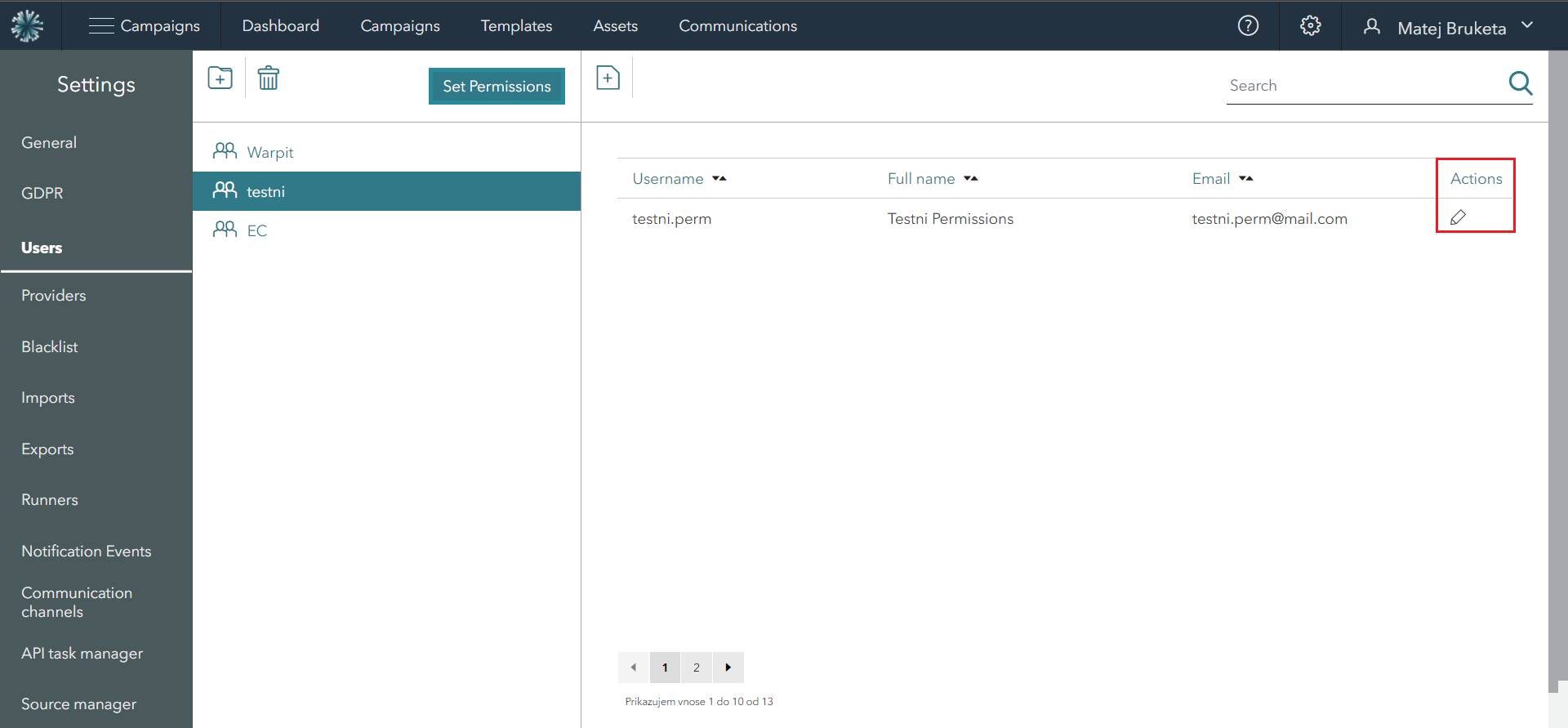
Once you access the Users tab, choose the specific user you wish to enable two-factor authentication for. Then, proceed to click on the pen button located under the Actions column.
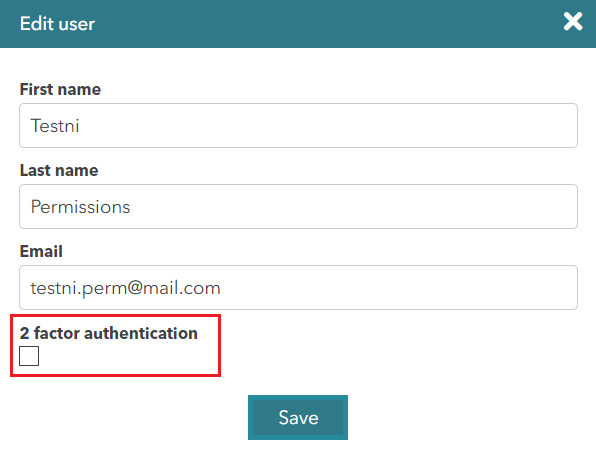
Clicking on the pen button will trigger the appearance of a new window. In this window, simply mark the empty square corresponding to the 2-factor authentication option.
Once activated, during your subsequent logins, a separate verification window will appear. You will need to scan a QR code with your designated two-factor authentication app and input a one-time verification code to proceed.
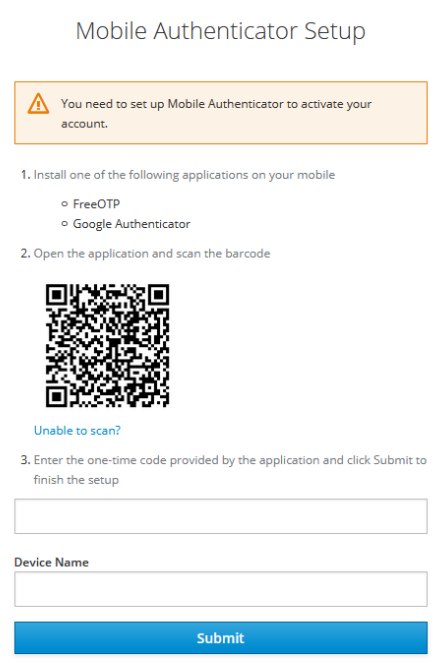
After the two-factor authentication is configured, you will be required to enter a one-time verification code from your two-factor authentication app each time you log in. It is strongly advised to keep this feature enabled at all times for enhanced security.